
Note – All links open a Google doc and open in a new tab
- VISUAL OVERVIEW
- Drive Folder with All Documents for Design Phase – Use [email protected] email address to access all of the “Design Phase” documents
Tasks
- ⭐ ⭐ ⭐ IMPORTANT – This starts the emails. Add AC Tag – Go to https://radiatewp.com/ac/ (must be logged in) and add the client’s email and then click the Client Project Stage: Design.
- Print or have ready the Discovery form
- Print or have read the Strategic Templates
- Host the Design Strategy Call
- Immediately after the call, organize your ideas and finish up notes and sketches that are top of mind at the moment.
Tools/Resources we use
Client Bonuses
- 100+ Answers Visitors Want Answers to on Your Website
- Action Verb Resource List
- Get Prospects to Say Yes in One Sentence
- Writing Killer Headlines
Email System
A. To Clients
- Project Process Reminder – AC
- Design Review and Feedback – AC
- What Design Approval Means – AC
- Website Content Basics – AC
- Using Stock Photography – AC
- We Can Select the Images – AC
- Social Media Reminder – AC
- Helpful Content Resources – AC
- Client Bonus – Writing Killer Headlines
- Client Bonus – 100+ Answers Visitors Want Answers to on Your Website
- Helpful Content Resources Part 2 – AC
- Client Bonus – Action Verb Resource List
- Client Bonus – Get Prospects to Say Yes in One Sentence
- Design Approval – Hello Sign (See below)
- Design Approval Schedule Next Steps Call – AC Automation (see below)
- Design Approval Schedule Your Call Reminder – Helpscout (see below)
B. Automation Notifications to RWP
- At the end of this email series, an FYI notice is sent to the help@rwp email address. No action is needed. However, this signals that we have been in this phase for 10 business days (appr. 2 weeks) and the next step is design approval. We should already have designs ready and sent to the client by now. If we do not have designs ready for the client yet, then this needs to be made a priority at this time.
C. HelloSign Template
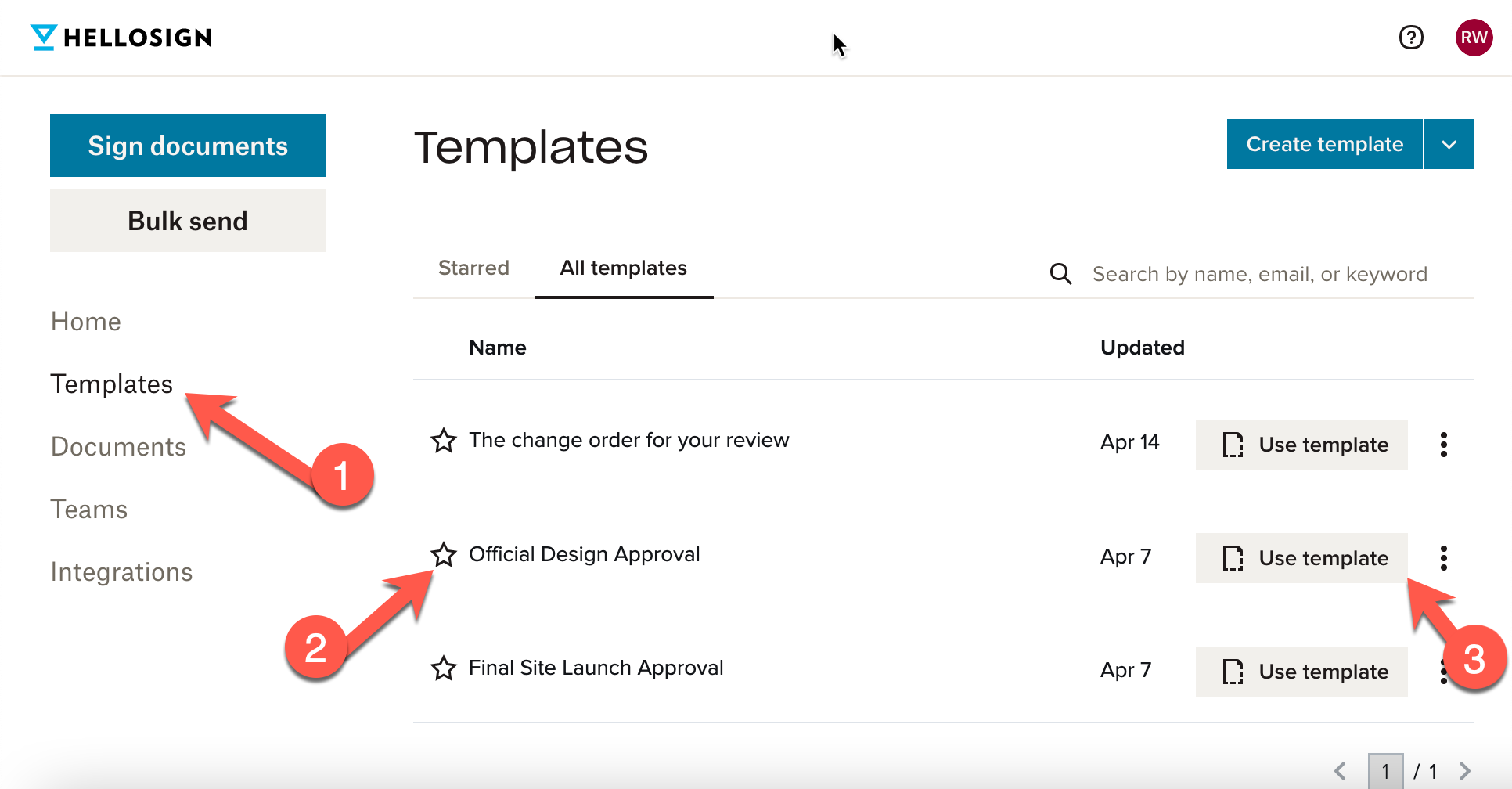
When the design is ready for approval, log into HelloSign and to the Templates section. (Log in using Google and use the [email protected] account. Use the Template called “Official Design Approval”.
- You can watch this tutorial on how to use HelloSign App.
When we receive the Design Approval, go to https://radiatewp.com/ac/ and enter the primary client email of the project and then go to the bottom under “Client Milestones”. This will add a tag to the active campaign client and it will release the next email in automation.
D. Email Automation – Active Campaign
- Design Approval Schedule Next Steps Call (When the call is scheduled, Calendly automatically adds a tag to the client AC record and we get a notification. If the appointment isn’t made within 3 days, then AC will send an email to [email protected] signaling that action is needed and instructing us to send a reminder.