
Add Core Updates to Monthly Reporting
- Log your time for this work under “radiatewp.com -> Monthly Reporting”
Note: you will need to open a new window to track your time separately because you’ll be using that same time entry page to enter time entries for all of these updates. - Go to the WordPress Core Updates page on RWP’s client site
- For each website, click the WPE backups link to view the hosting dashboard backups page for that website
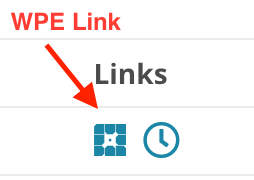
- Look for any backups within the reporting month that have a description “Before WP upgrade from x.x.x to x.x.x” and copy the text “WP upgrade from x.x.x to x.x.x”
- If there are any “WP upgrade” backups, click the time entry link which should pre-fill some data. Be sure to set the proper date (defaults to today), according to the date of the backup.
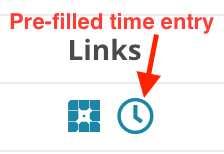
- Use the following time entry details for each upgrade:
- Date: <date of the backup>
- Hours: 0 [should pre-fill]
- Start/End time: <leave blank>
- Website: <website in original list> [should pre-fill]
- Task: Maintenance [should pre-fill]
- Notes: <paste copied text from backup description>
(In the example above it would be: “WP upgrade from 4.5.3 to 4.5.4”)
- Repeat for each website in the list.

Note: Skip any websites that do not have a WPE link. It’s also possible that there will not be any “WP upgrade” backups for the month, so there is nothing to report regarding upgrades for that website. There can also be multiple “WP upgrade” backups for any given month, so be sure to log each one found in a separate time entry w/ corresponding date.