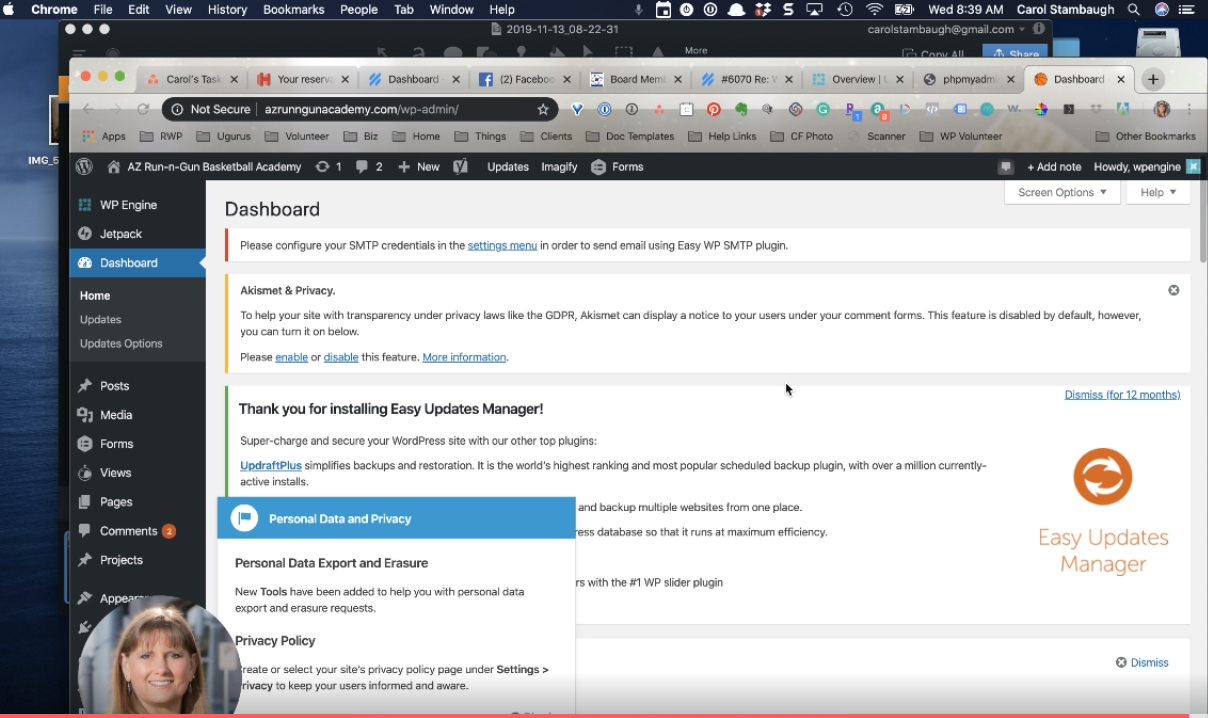
- Go to phymyadmin.wpengine.com from the WPEngine dashboard and log in.
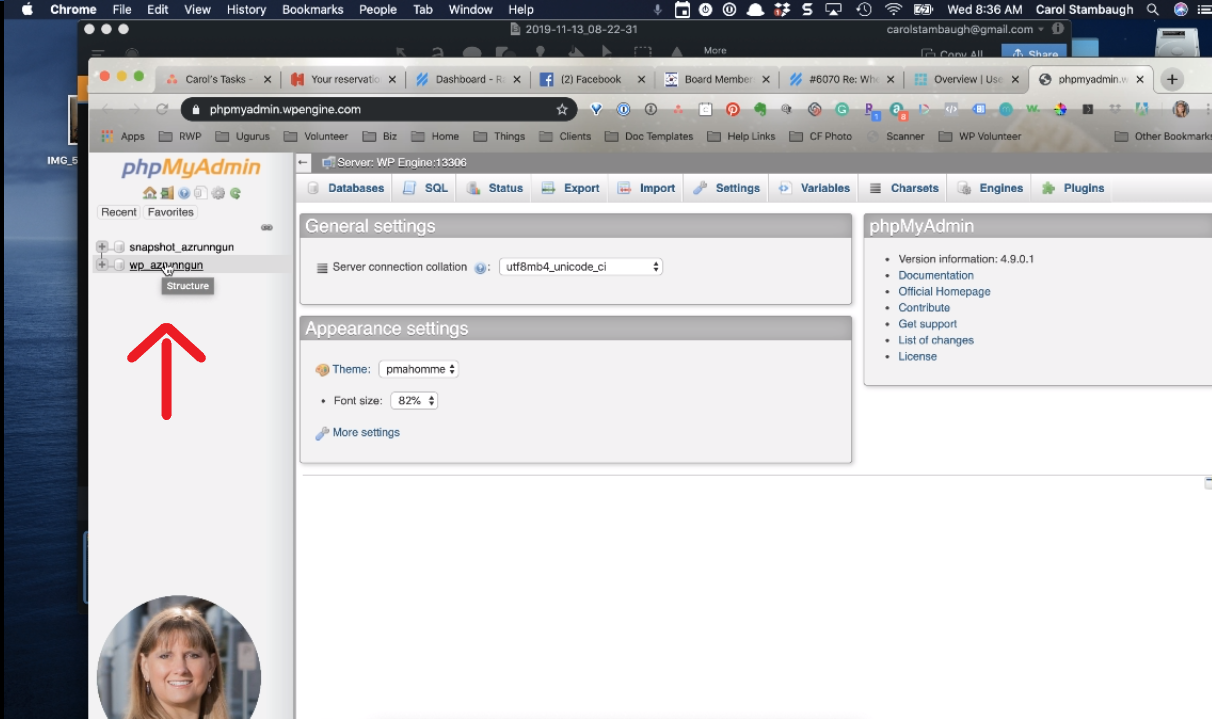
- Click on the directory that does NOT say “snapshot”. This is the main database.
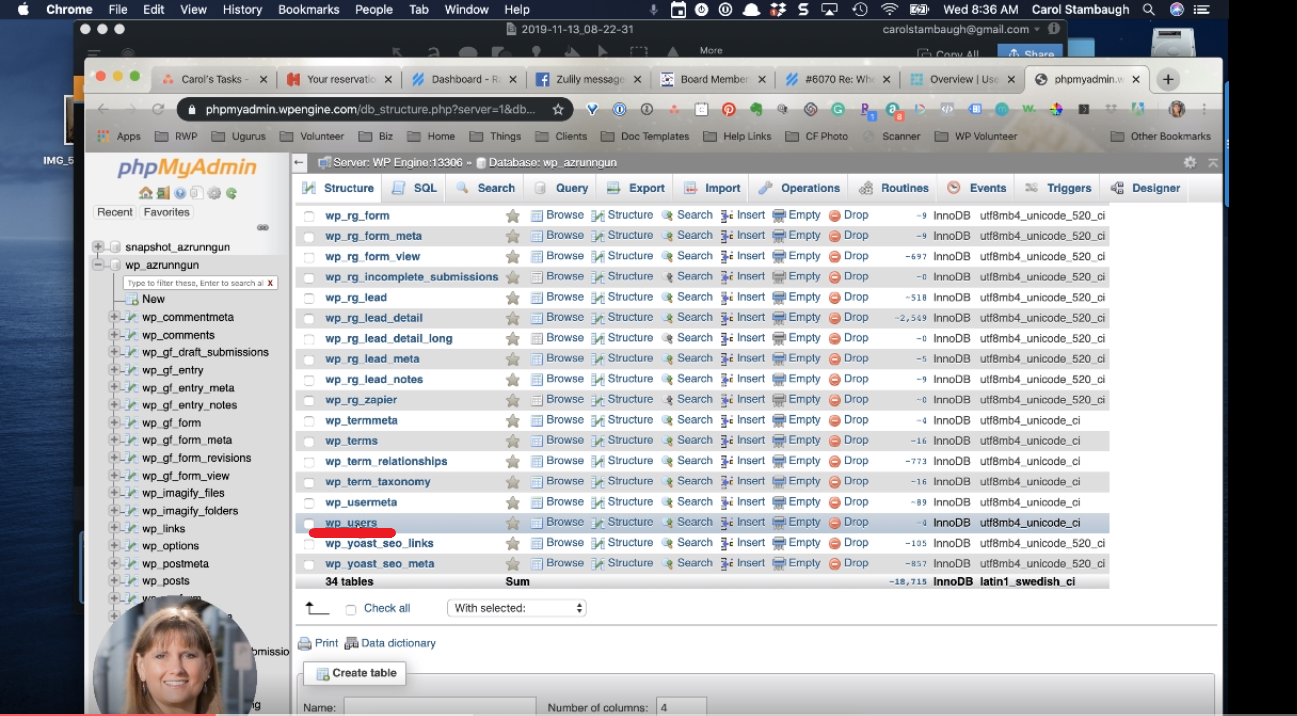
 3. Look for the user table and click on it.
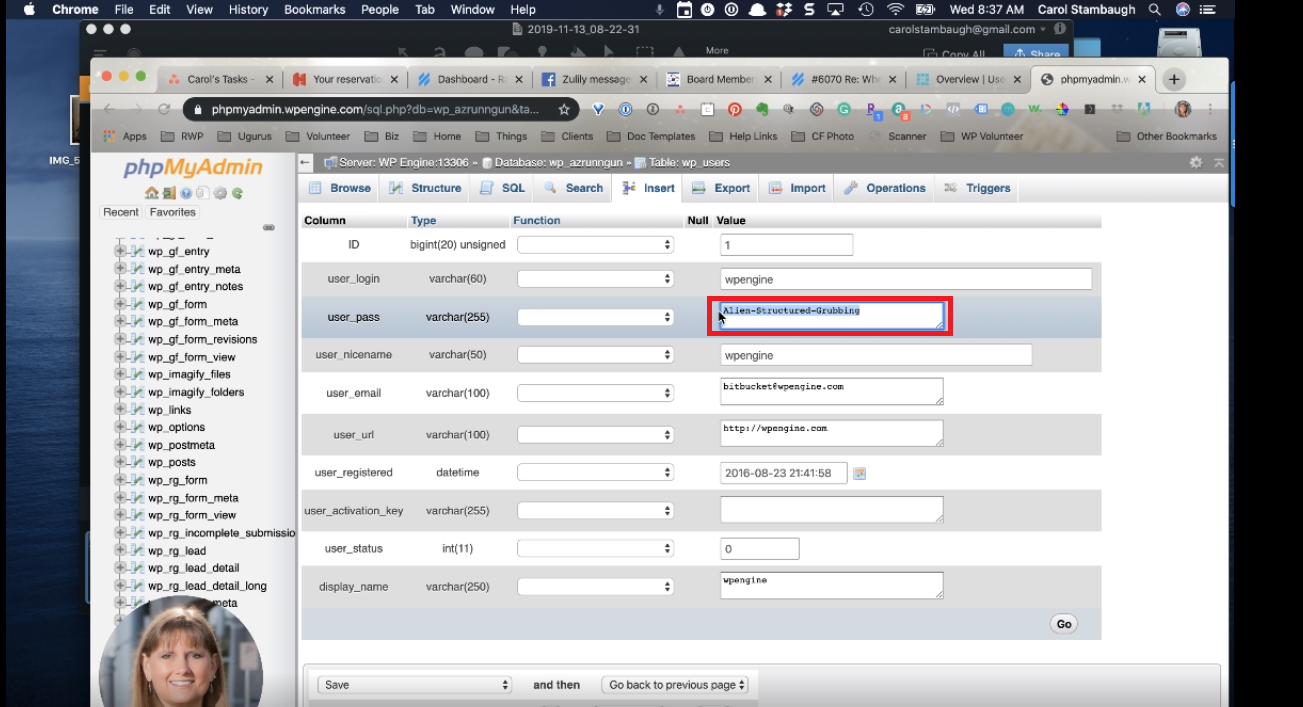
4. We are going to use “wpengine” user as an example. Now click on “Edit.”
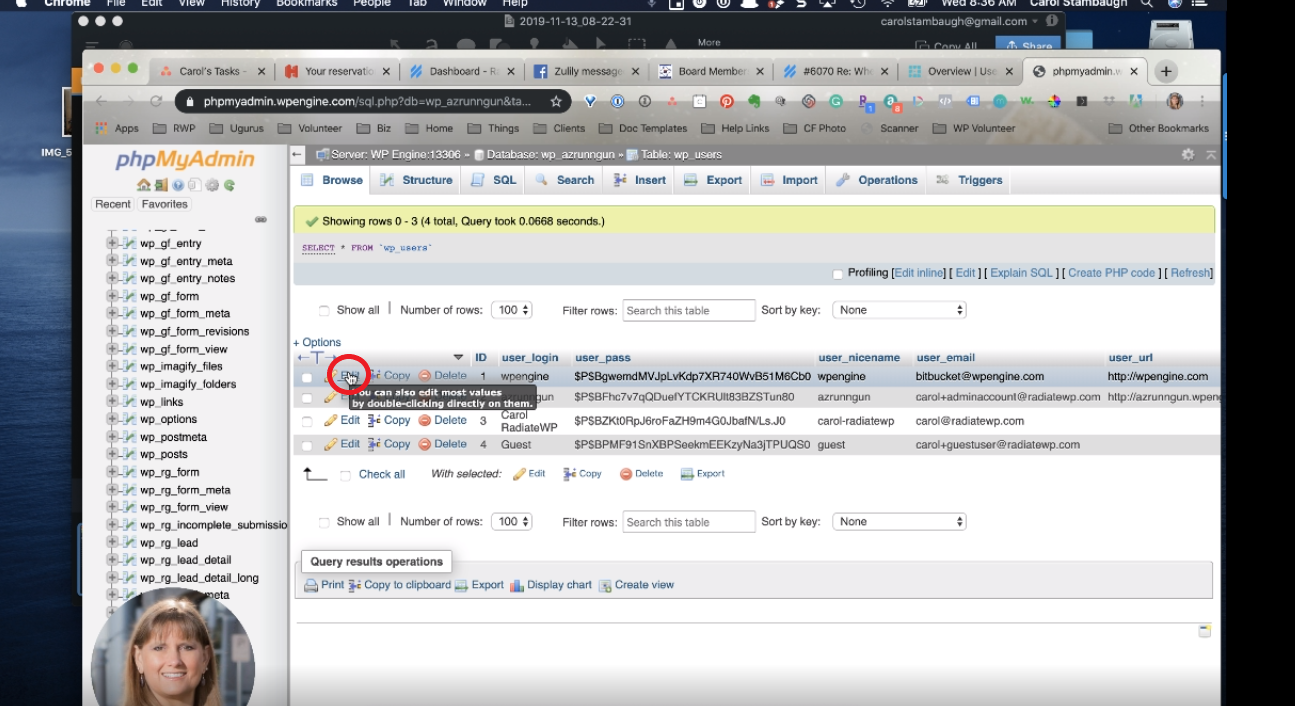
5. The next step is deleting the “user_pass” field and type in a new password. You can use a password generator (In my case I use “password factory”).
6. Logging out and logging in again just to make sure the password has been changed successfully.
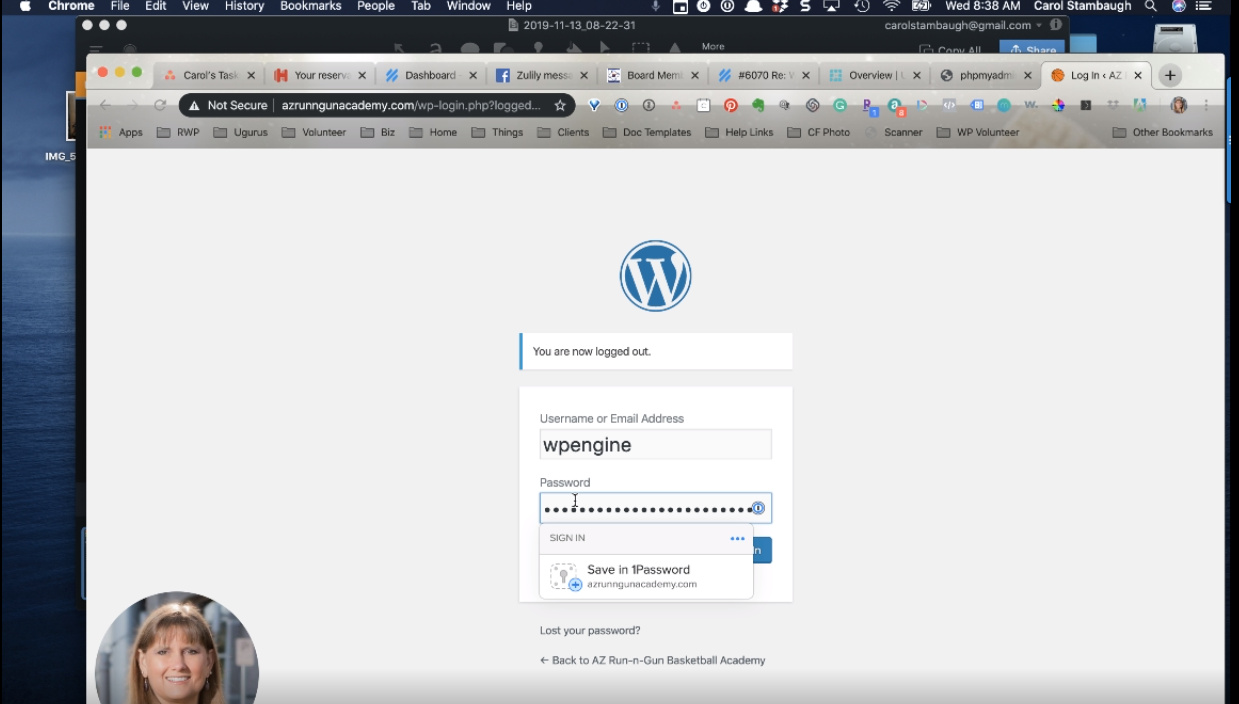
7. And… We are ready to go! That is how you change your password using phpmyadmin.