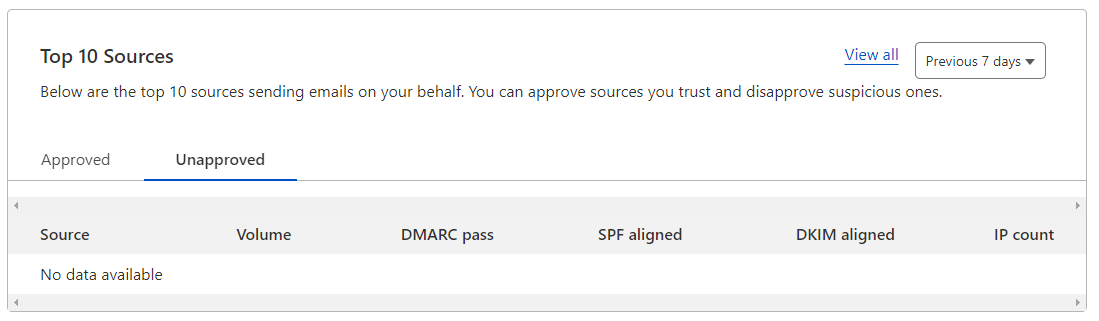
We’re running into multiple instances of client websites having their domain email blocked for not setting up additional security options via DNS. Cloudflare has some tools to help with this process.
To enable DMARC Management:
- Log into Cloudflare.com
- Go to Websites and click on the website you want to enable DMARC Management on.
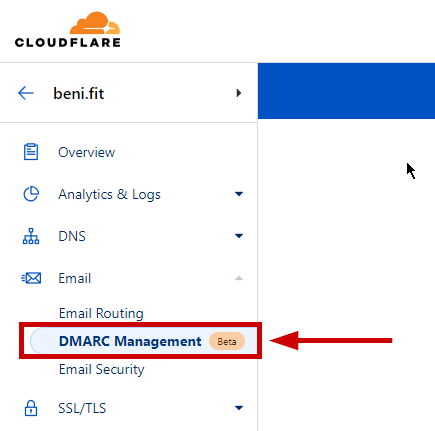
- Click on Email > DMARC Management on the left sidebar
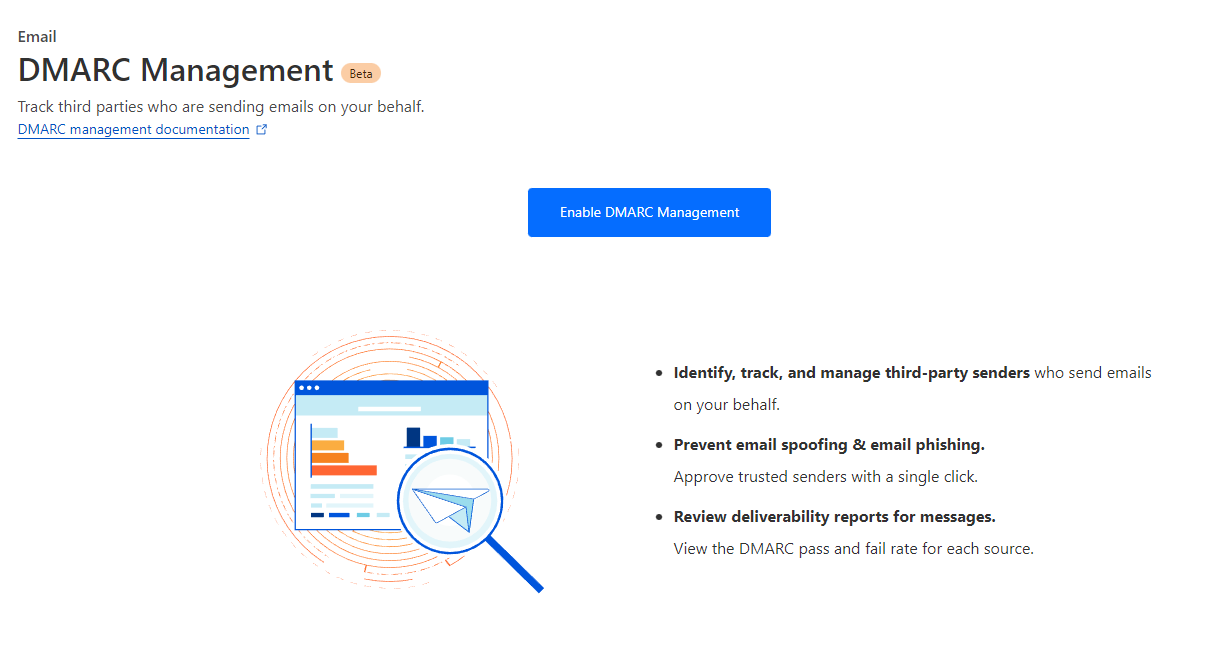
- Click on the “Enable DMARC Management” button
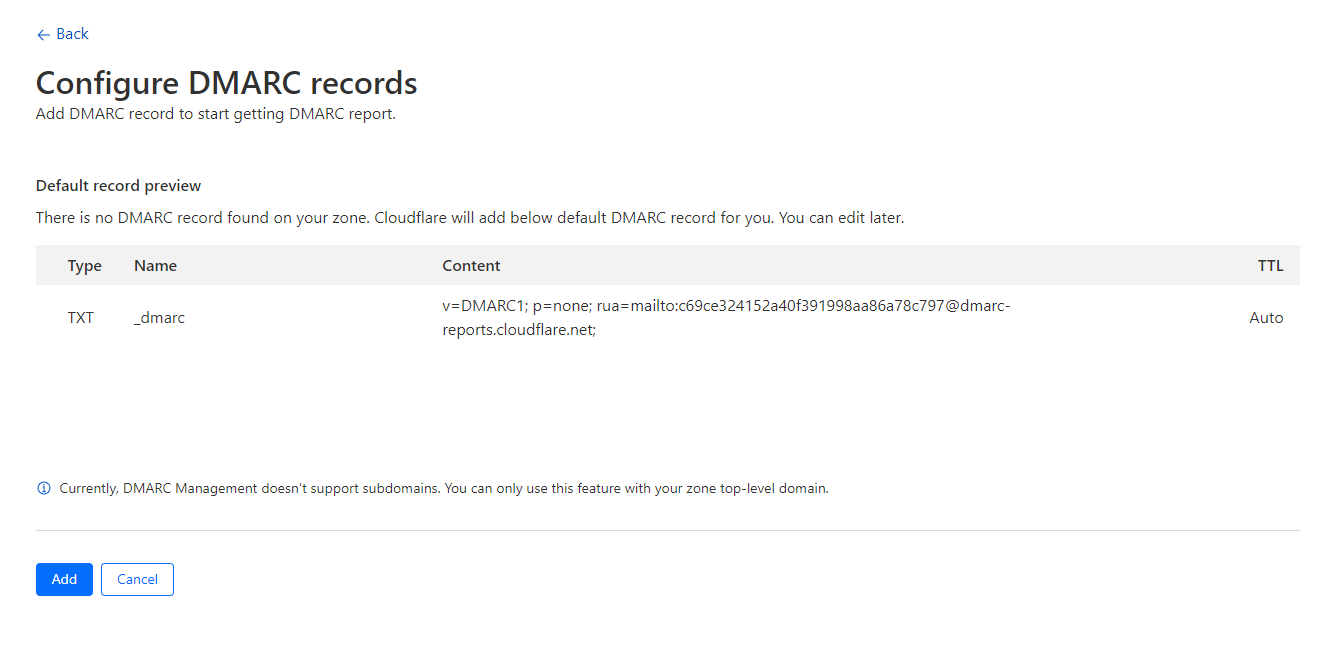
- On the Configure DMARC records screen, click Add
We now need to wait 24 hours to see the first results on the report:
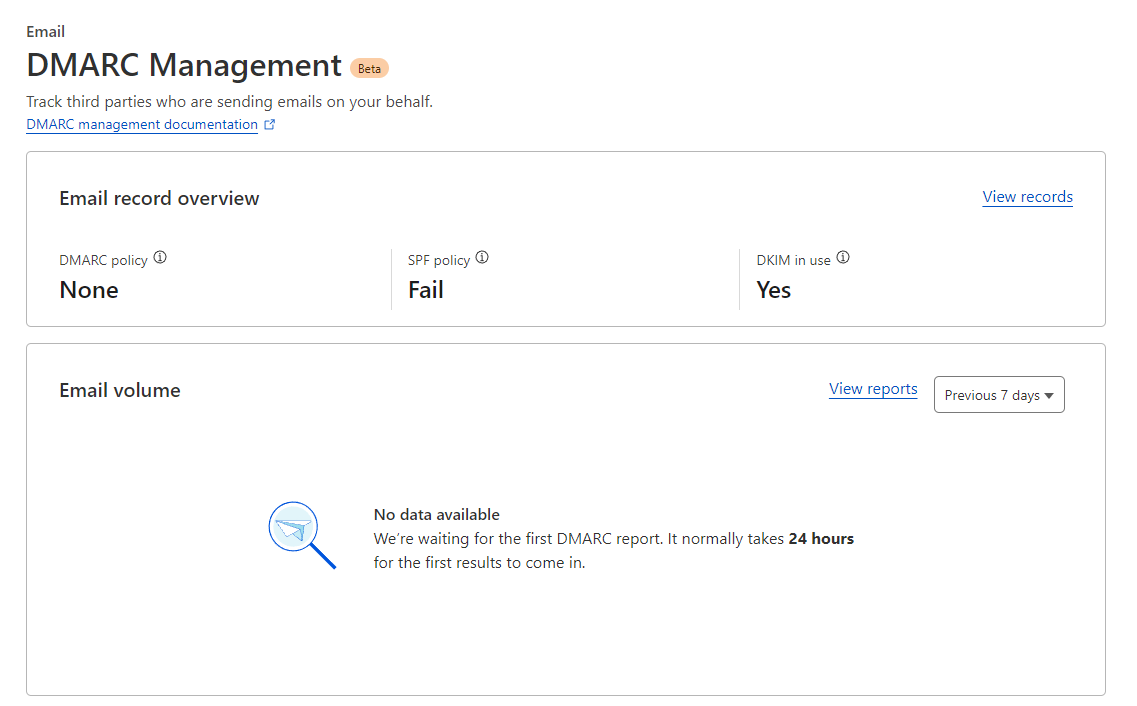
Once 24 hours have passed, we need to go back in and look into the Sources ( see Cloudflare documentation).
To approve or disallow a third party source:
- Log in to the Cloudflare dashboard and select your account and domain.
- Select Email > DMARC Management.
- Go to Top 10 sources > View all.
- Select the Approved or Unapproved tabs depending on whether you want to check for sources that are approved or unapproved to send emails from your domain.
- Find the third party you want to change, and select the three dots next to it.
- Select Mark as approved or Mark as unapproved.
- Confirm your choice.